Distribution
Distribution and Integration
Use to distribute digital payment wallets to your solution portfolio.
This image shows the Merchant Details page in the .
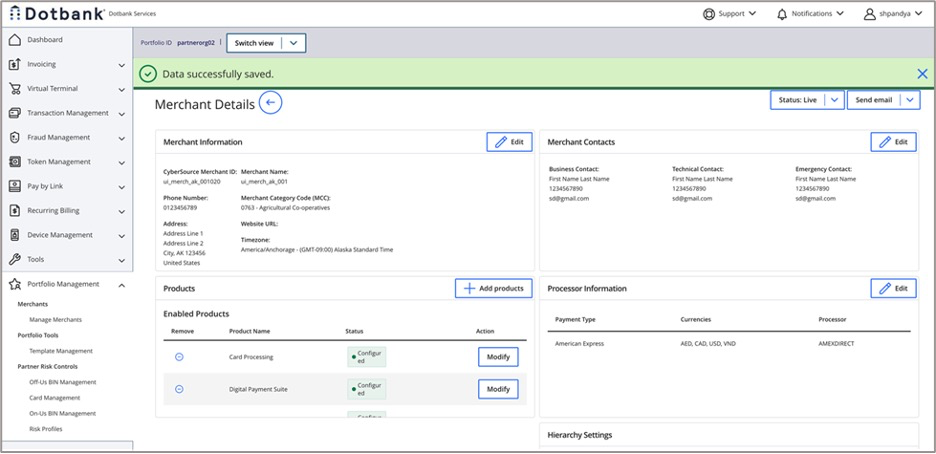
These terms are relevant to distributing digital wallets:
- Enablement: the act of the partner allowing access to digital wallets for their transacting merchants.
- Enrollment: the act of enrolling a merchant into a digital payment solution.
Apple Pay Implementation Path
This section describes how a merchant enrolls in the Apple Pay digital wallet on .
Implementation considerations and models: This activity registers the merchant with Apple and adds the merchant's page to Apple's list of domains applicable for Apple Pay.
Prerequisites: Apple Pay enrollment requires validation into their domain. Merchants must enroll in Apple Pay for it to function in .
Enrollment: The merchant provides information in the Apple Pay enrollment page in the , and Apple validates the information.
This image shows the page for registering Apple Pay.
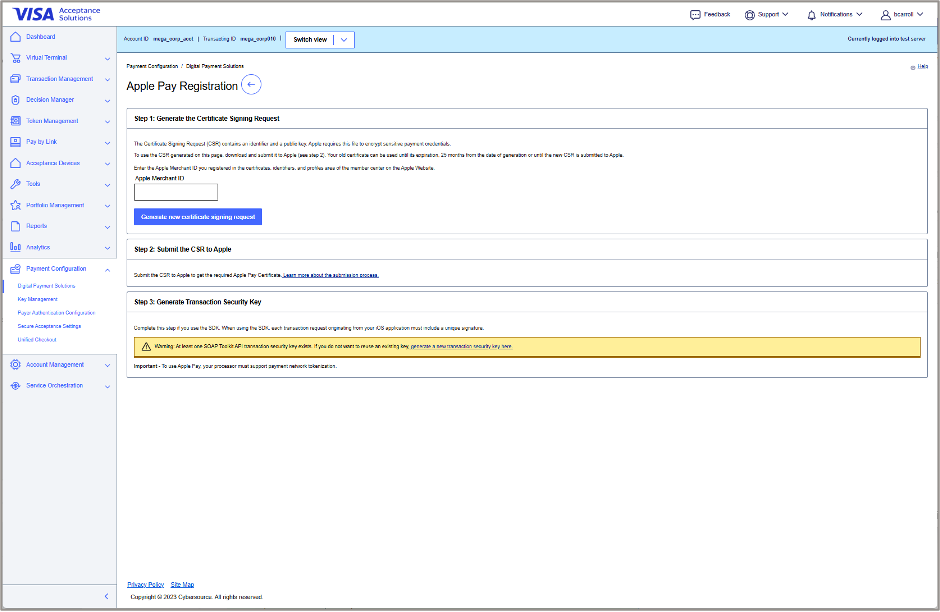
These are the next steps and the implementation plan:
- The merchant downloads a public certificate signing request (CSR) from the and uploads it to their Apple merchant account.
- The merchant can choose to manage payload decryption directly with Apple, using the payload as needed for follow-on payment processing.
To enroll in Apple Pay, a merchant must download a public CSR from and upload it to the Apple developer account for domain verification.
Google Pay Implementation Path
This section describes how a merchant enrolls in the Google Pay digital wallet on .
Implementation considerations and models:
Google Pay implementation is simpler than other digital wallets for these reasons:
- Authentication keys needed for Google Pay are automatically uploaded through .
- Merchant decryption of payload is not supported by Google Pay. manages decryption as a provider resource.
Before beginning to implement Google Pay, the merchant needs to be aware of these requirements:
- Google Pay must be enabled at the portfolio level.
- Google Pay uses gateway tokenization.
Paze Implementation Path
This activity enrolls a merchant in Paze.
Prerequisites
Before beginning to implement Paze, the merchant needs to have this information:
- Merchants must enroll in Paze with their acquirer. This activity registers the merchant with Early Warning System's Paze services.
- The acquirer is responsible for verifying the contracts.
- A reseller needs to verify which acquirer the merchant has a contract with. Resellers are responsible for verifying and configuring the merchant profile with the acquirer.
Overview
For Paze wallet configuration, merchants enter information into the Paze Configuration screen in the . On successful completion of the configuration, a banner appears at the top of the screen and the client ID appears in the Merchant Details panel.
This image shows an example of the Paze Configuration screen as a merchant is enrolled.
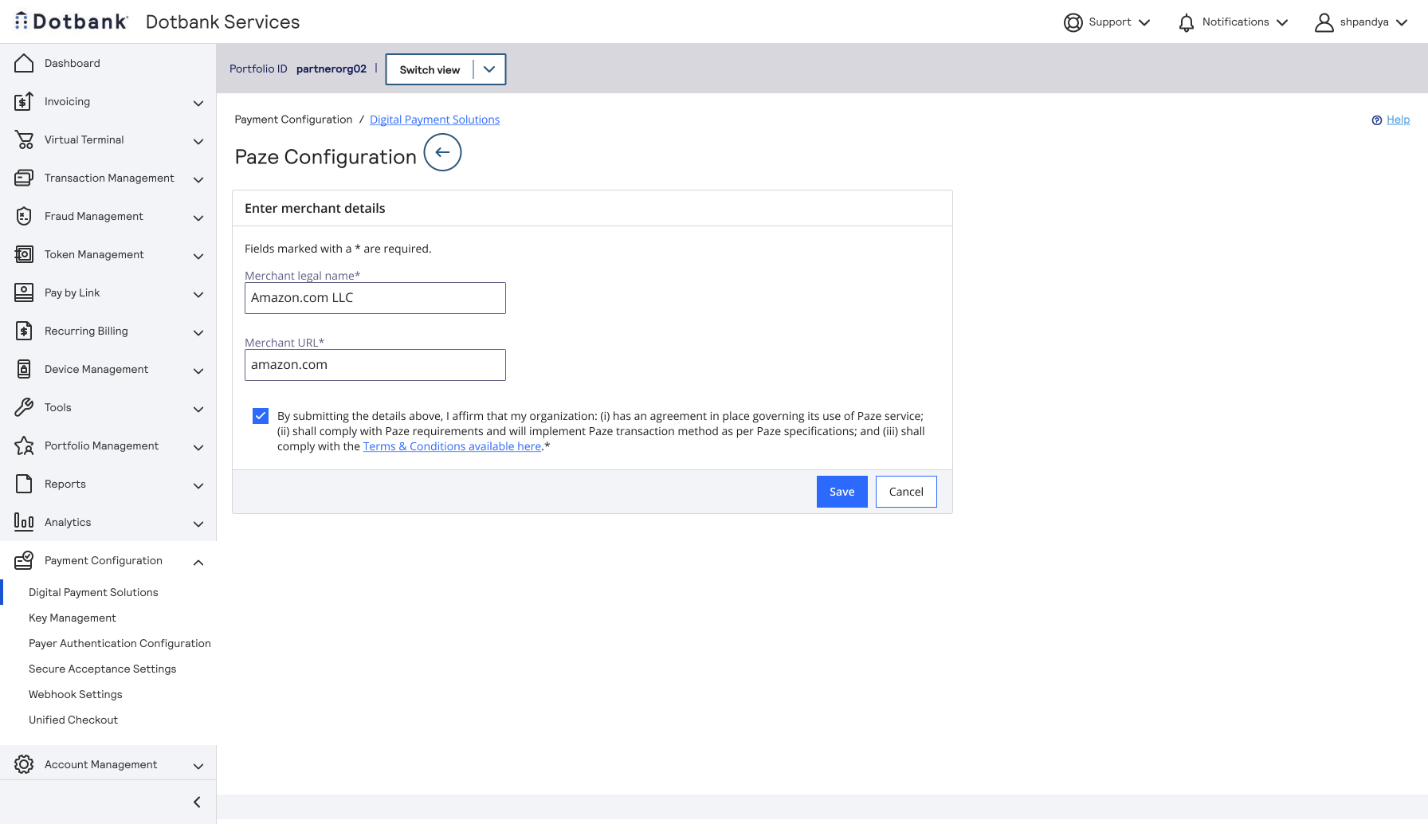
Summary of Merchant Tasks
This list summarizes the tasks that a merchant completes to accept Paze payments through :
Navigate to the Paze Configuration page.
Provide the merchant business name and website URL.
Complete the enrollment process according to the acquirer's requirements.
In the Paze Configuration page, confirm that the merchant profile is properly configured with the acquirer.
This image shows an example of the Paze Configuration screen after configuration changes are successfully saved.
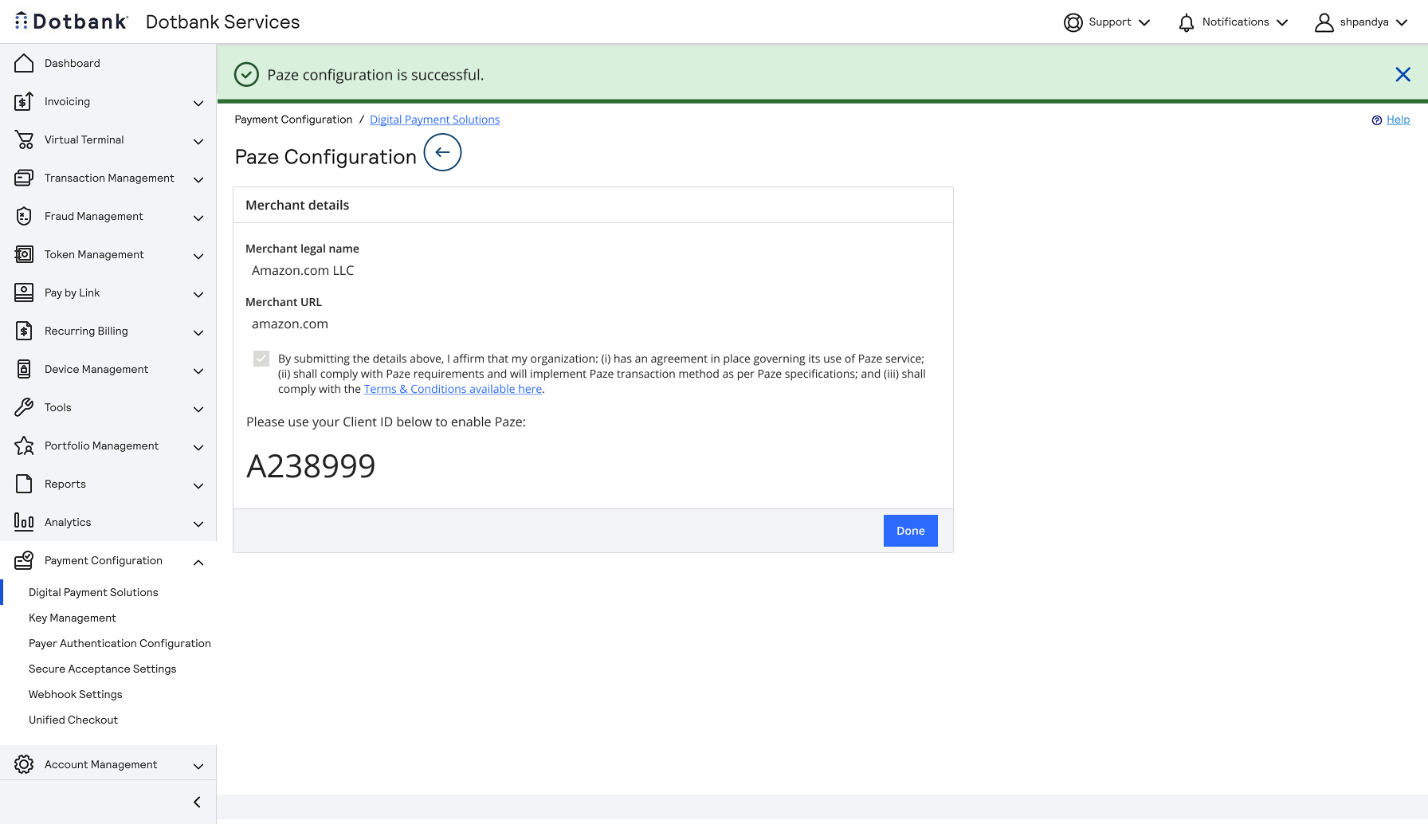
Successful Paze Configuration Test the implementation to ensure proper functionality.
Implement the tested implementation in the production site.
Resources for Merchants
The Developer Center provides these and other resources for merchants and partners:
- The Implementation Guide. This guide is for partners who need to set up and administer their portfolios in the system. For the purposes of this guide, a partner is an enterprise merchant, solutions provider, partner reseller, or acquirer.
- The Documentation Hub that links to additional comprehensive documentation.
- The Response Codes page, where you can enter the status, reason, service, or HTTP status code you received from the Payment Gateway and view the description. You can also download a copy of the latest JSON-formatted response codes and descriptions.
- The Testing Guides page, which includes test card numbers and common payment transaction responses.
Also see How to Get Help on the developer center.
Thanks for your feedback!
Last published: November 18, 2026