Implementation
This section provides portfolio-level implementation steps for digital wallets on . The Implementation Guide contains additional information on portfolio ownership and functional usage.
Understanding Boarding with Digital Wallets
All digital wallets — Apple Pay, Google Pay, and Paze — can be enabled at the portfolio level for acquirers, larger merchants, and resellers based on your business case.
Google Pay allows to use gateway tokenization. uploads keys directly to the Google server, which handles all transactions coming through . Google Pay does not require similar enablement configuration.
If a digital wallet product is not visible within your portfolio, contact your account owner or relationship owner.
For specific country codes and currency codes, see these guides:
Configuration and Administration
This section provides information about configuring and administering digital wallets on .
Enable Product
Portfolio users with appropriate permissions enable digital wallets through the new merchant creation process or through the Add products option in the Merchant Details screen in the .
This image shows an example of the Merchant Details screen for the existing merchant ID ui_merch_ak_001020.
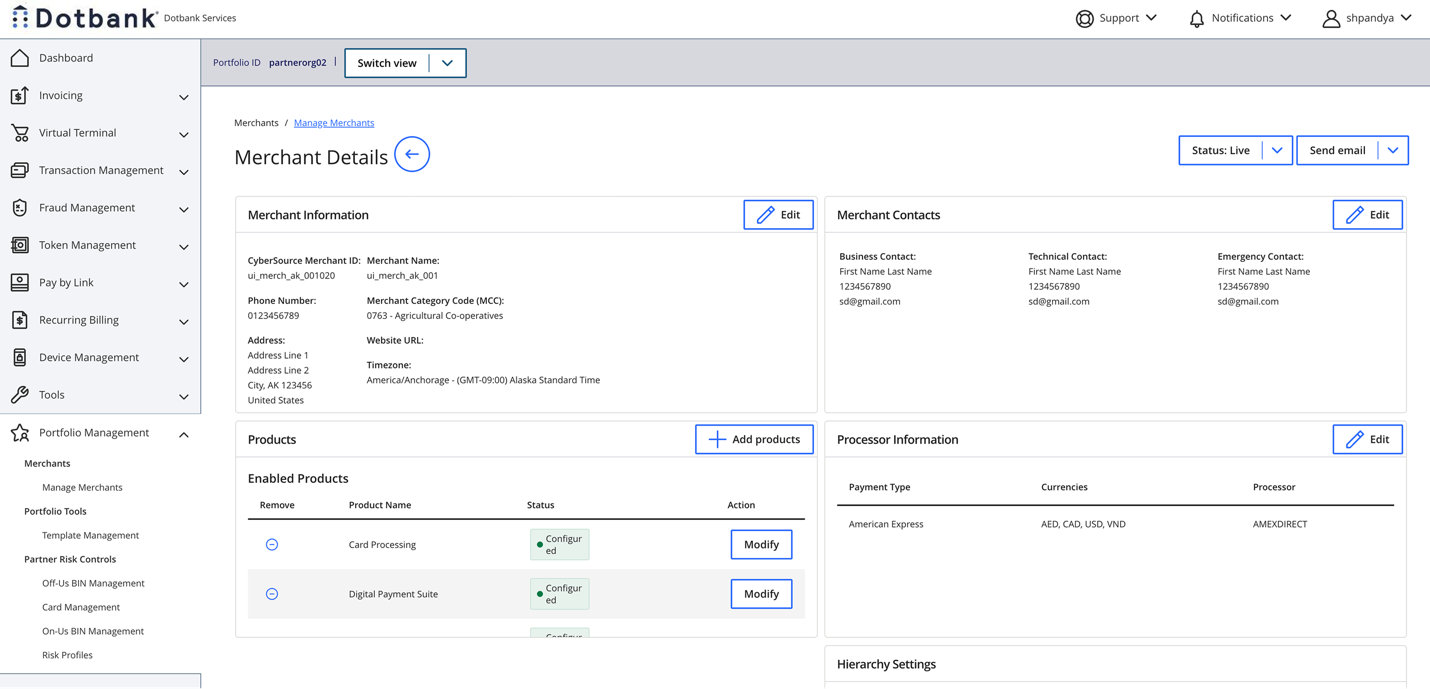
For information about new merchant accounts, merchant transacting organizations, and enabling products and services for existing transacting merchant organizations, see the Implementation Guide.
To enable digital wallets for existing merchants:
- In the , select Portfolio Management > Manage merchants.
- For a new merchant:
- Follow the merchant creation process.
- Select Digital Wallets as one of the products to enable.
- For an existing merchant:
- Locate the merchant in the list and select the merchant name.
- In the Products pane, select Add products.
- Select Digital Wallets from the list of available products.
- Configure the Digital Wallet settings:
- In the Enabled Products pane, click Modify for Digital Payment Suites.
- Save the configuration.
Result: A digital wallet product is now enabled for the selected merchant. The merchant can accept payments through various digital wallet services.
Configuration Breakdown
Wallet enablement steps must be completed at the portfolio level before any transacting MIDs under the portfolio can use those digital wallets. To see how an enabled wallet option would appear to merchants, a portfolio user can select an option in the Switch Role drop-down at the top navigation bar.
For any digital wallet product, the necessary contracts must be signed and validated before the digital wallet option can be enabled.
For the latest list of the acquirers that participate in the Paze scheme, see the Paze home page.
Use the Merchant Details screen to enable digital wallet apps. This image shows an example of the Merchant Details screen with Apple Pay and Paze digital wallets enabled for the selected merchant. For the Paze wallet option, you can use the Configuration drop-down to select the acquirers that participate in the selected digital wallet. To enable Apple Pay, use the checkbox option.
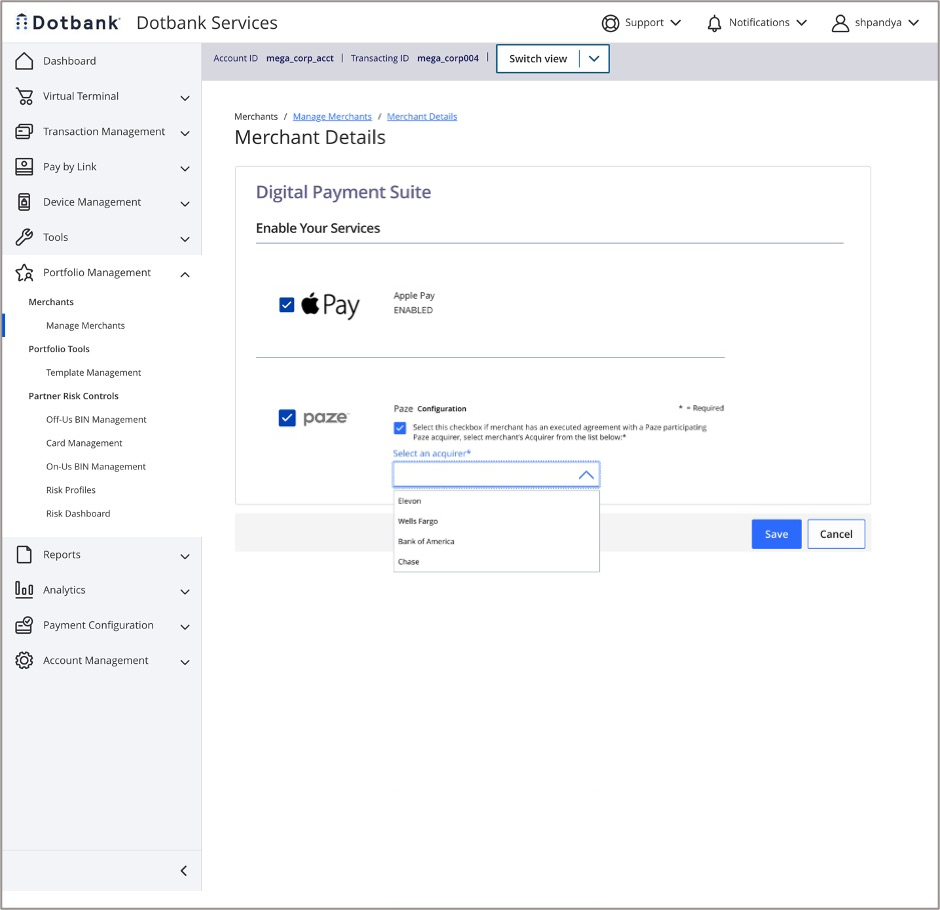
After you save a configuration, a confirmation banner appears on the screen. The enabler can also return to the configuration screen to disable the configuration.
Thanks for your feedback!
Last published: November 18, 2026