Get Started with TMS for Partners
Onboard merchants, enable network tokenization for your portfolio, and manage tokens on their behalf.
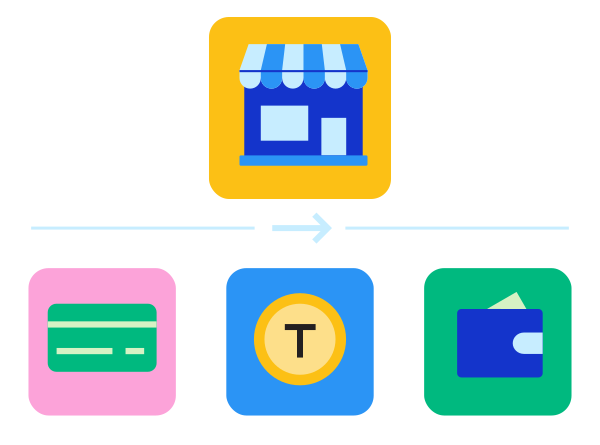
This flow walks partners through setting up for merchant onboarding. Choose the integration model that matches how you use :
Enable your merchants to manage network tokens directly through as a standalone service, independent of payment processing. handles token provisioning, cryptogram generation, and life-cycle updates.
Register for a Portfolio
You need to register for a portfolio organization to begin boarding and managing merchants.
To request a portfolio, contact your account representative with this information:
- Organization ID: Portfolio MID name
- Environment: Test and Production
- Business information: The business name and address
- Business contact: The contact that receives an email registration link to gain access to through the portfolio MID.
- Technical contact: The contact that receives automatically generated notifications, such as product updates, as well as non-urgent notifications.
- Emergency contact: The contact that receives urgent messages such as service outage notifications
- Merchant notifications: This will send a welcome email to the business contact associated with the end merchant.
- Processing information: Not applicable.
- Product information: only
For more information on organization types and hierarchy, see Board a Merchant with TMS, later in this flow.
Create API Keys
When creating API keys, select the Set as Meta Key option to use a single API key to transact on behalf of multiple transacting merchants. For more information, see Meta Keys.
- Log in to the using your credentials.
- On the left navigation panel, choose Payment Configuration > Key Management.
- Generate a REST – Certificate key. This key authenticates and encrypts requests to the API.
- Generate a REST – API Response MLE key. This key decrypts responses from the API.
For more information, see REST API Keys.
Board a Merchant with TMS
A MID is a unique value within that you define during account registration. Your MID identifies your merchant account and payment configuration within systems. You provide this identifier when you sign in to the and submit transactions to .
Multiple MIDs can be configured for various token types. You receive the instrument identifier token regardless of your account's token type. Reasons for multiple MIDs include:
- You have multiple processors.
- Point-of-sale terminals have unique MIDs, which are usually configured for the PAN-only instrument identifier token.
When you have multiple MIDs, you can set up one token vault to which all of your MIDs have access or set up multiple vaults to limit access to tokens.
The is an online portal provisioned to partners and end merchants. You can use this portal to onboard merchants, view transactional activity, and generate and download reports.
There are two environments associated with the : test and production. Each has its own corresponding URL to gain access:
- Test:
- Production:
To gain access to the , partners and merchants must be provisioned with an Organization ID, otherwise known as a merchant ID (MID). There are multiple types of MIDs:
- Portfolio: This is typically a MID provisioned to partners. Portfolio MIDs enable partners to onboard merchants into either a test or production environment.
- Merchant: This is a parent MID that can house multiple transactional MIDs. This is directly associated with the end merchant and is created by the partner under the portfolio MID. This MID is attached to specific functionality such as the token vault ().
- Transactional: This is a child MID. Each partner's end merchant may have multiple transactional MIDs. The transactional MID is typically used for processing into , for example, to provision a network token via the API. This is directly associated with the partner's end merchant and is created by the partner under the portfolio MID.
Board a Merchant Using the Business Center
You can board a merchant for directly in the .
- Log in to the test environment or production environment:
- In the left navigation panel, choose Portfolio Management > Merchants > Manage Merchants, then click + Add Merchant.
- Select Board a new merchant account to create a new merchant account, or Add to an existing account to add a transacting merchant to an existing merchant organization. Click Next.
- If more than one boarding package is available, select one from the drop-down menu, or search for it, then click Next. skips this step if only one boarding package exists.
- Click Start in the Merchant Account Information section and enter the account details. (Optional) Click Skip in the Hierarchy Details section to bypass hierarchy setup.
- Click Start in the Transacting Organization and Products section. Enter the transacting organization name and organization ID, then locate Token Management Service and select Enabled from the Enablement drop-down menu.
- Click Configure, select a template from the Product Configuration Template drop-down menu, and click Apply to save the configuration.
For details, see Add TMS to a Merchant Account in the Merchant Boarding User Guide.
For information about creating the underlying merchant organization structure, see Create Organizations in the Merchant Boarding User Guide () or Merchant Boarding User Guide (Visa Acceptance Solutions).
Board a Merchant Using the API
You can also board a merchant for and enable network tokens at scale using the Boarding Registration Service API. Choose the scenario that matches your merchant's onboarding path.
Board a Merchant Account and Enable Network Tokens
The vault and Token Requestor ID are configured at the merchant account organization where tokens are stored. The Boarding API automatically requests and configures Token Requestor IDs for Visa and Mastercard using the business information provided.
POST /boarding/v1/registrations
POST /boarding/v1/registrations
{ "registrationInformation": { "boardingFlow": "ENTERPRISE" }, "organizationInformation": { "organizationId": "MerchantOrgId", "parentOrganizationId": "PortfolioOrgId", "type": "MERCHANT", "configurable": true, "businessInformation": { "name": "NetworkTokenMerchant", "address": { "country": "US", "address1": "123456 SandMarket", "locality": "ORMOND BEACH", "administrativeArea": "FL", "postalCode": "32176" }, "websiteUrl": "https://www.NetworkTokenMerchant.com", "businessContact": { "firstName": "Token", "lastName": "Man", "phoneNumber": "6574567813", "email": "[email protected]" } } }, "productInformation": { "selectedProducts": { "commerceSolutions": { "tokenManagement": { "subscriptionInformation": { "enabled": true }, "configurationInformation": { "configurations": { "vault": { "location": "GDC", "defaultTokenType": "CUSTOMER", "tokenFormats": { "customer": "32_HEX", "paymentInstrument": "32_HEX", "instrumentIdentifierCard": "19_DIGIT_LAST_4", "instrumentIdentifierBankAccount": "32_HEX" }, "sensitivePrivileges": { "cardNumberMaskingFormat": "FIRST_6_LAST_4" }, "networkTokenServices": { "visaTokenService": { "enableService": true, "enableTransactionalTokens": true, "tokenRequestorId": "40000000082", "relationshipId": "24681921-40000000082" }, "mastercardDigitalEnablementService": { "enableService": true, "enableTransactionalTokens": true, "tokenRequestorId": "50162233570" }, "americanExpressTokenService": { "enableService": true, "enableTransactionalTokens": true, "tokenRequestorId": "12345678912", "seNumber": "9876543212" }, "paymentCredentials": { "enabled": true }, "synchronousProvisioning": { "enabled": true } } } } } } } } }}{ "id": "14147003004", "submitTimeUtc": "2026-10-20T14:03:52Z", "status": "SUCCESS", "registrationInformation": { "mode": "COMPLETE", "boardingPackageId": "5183803004" }, "organizationInformation": { "organizationId": "MerchantOrgId", "parentOrganizationId": "PortfolioOgId" }, "message": "Request was processed successfully"}Add a Transacting Organization to a Merchant Account
The transacting organization is added to the vault configured at the merchant account organization.
POST /boarding/v1/registrations
POST /boarding/v1/registrations
{ "organizationInformation": { "configurable": false, "businessInformation": { "businessContact": { "firstName": "Business", "lastName": "Contact", "phoneNumber": "7508380685", "email": "[email protected]" }, "merchantCategoryCode": "7298", "emergencyContact": { "firstName": "Emergency", "lastName": "Contact", "email": "[email protected]", "phoneNumber": "1-888-668-7728" }, "websiteUrl": "https://www.NetworkTokenMerchant.com", "address": { "country": "US", "address1": "123456 SandMarket", "locality": "ORMOND BEACH", "administrativeArea": "FL", "postalCode": "32176" }, "technicalContact": { "phoneNumber": "1-888-668-7728", "firstName": "Technical", "lastName": "Contact", "email": "[email protected]" }, "timeZone": "Europe/London", "name": "El Estudio Pilates Boutique" }, "type": "TRANSACTING", "parentOrganizationId": "{MerchantOrgId}", "organizationId": "{TransactingOrgId}", "status": "TEST" }, "productInformation": { "selectedProducts": { "commerceSolutions": { "tokenManagement": { "subscriptionInformation": { "enabled": true } } } } }}{ "id": "14147703004", "submitTimeUtc": "2026-10-20T14:24:04Z", "status": "SUCCESS", "registrationInformation": { "mode": "COMPLETE", "boardingPackageId": "5183803004" }, "organizationInformation": { "organizationId": "TransactingOrdId", "parentOrganizationId": "MerchantOrgId" }, "message": "Request was processed successfully"}Configure Your Merchant's Token Vault
Token Vault Management
Token vaults are where merchants store their customer and payment data. A internal user can enable the vault.
Vaults are assigned to an owner, and all data within the vault belongs to the owner. You can grant permission to individual MIDs to create, retrieve, update, and delete tokens within a vault. Created tokens belong to the owner of the vault, not the creator of the token. If you remove a MID from a vault, it can no longer access any tokens within that vault, including tokens created under that MID.
Configure Vault Settings
- Log in to the test environment or production environment:
- Test:
- Production:
In the left navigation panel, click the Token Management icon.
Click Vault Management New. The Vault Management page appears. From the Vault Owner drop-down list, select the vault owner.
In the Details column, click Vault Settings. The Edit Vault page appears.
Click Edit. A dialog box appears with a message to warn you that changing your vault settings could result in your merchants being unable to access tokens, which could result in failing transactions. Click Yes if you want to continue.
Enter the vault name, supported payment methods, supported token types and formats, card number masking format, payment instrument storing configuration, and the webhook URL. For each token type, you can choose from these token formats:
- 32 Character Hex
- 22 Digits
- 19 Digits Luhn Check Passing
- 16 Digits Luhn Check Passing
- Click SAVE.
To return to the vault management page, click VAULT MANAGEMENT.
Configure Vault Access
- Log in to the test environment or production environment:
- Test:
- Production:
In the left navigation panel, click the Token Management icon.
Click Vault Management New. The Vault Management page appears.
Select the vault owner that you want to configure from the Vault Owner drop-down list.
In the Details column, click Access Settings. The MID Access page appears.
Check the box for the vault settings you want to enable for each merchant you want to configure:
- Visa Token
- Mastercard Token
- Card Unmasked
- Create
- Update
- Retrieve
- Click Submit to save your settings.
Enable Network Tokenization
Network tokenization replaces a customer's primary account number (PAN) with a network token. A network token is a tokenized card number that is issued by card networks (for example, Visa, Mastercard, American Express, and Discover). Network tokens use the same format as a PAN but are domain-restricted and cryptographically secured. This reduces exposure to fraud and data breaches.
For more information about how network tokens work and their benefits, see Network Tokens.
Network token enablement is currently a manual process and requires a request to be sent to support. For more information about network token enablement, visit the Support Center:
Configure Network Tokenization by Card Type
Token Requestor IDs
A token requestor ID (TRID) is a unique identifier that entities such as merchants use to request network tokens from token providers. Having a TRID is a prerequisite for enabling network tokenization.
Visa and Mastercard TRIDs
An internal user can enroll a merchant as a VISA or Mastercard token requestor through the .
When the enrollment is submitted, the relationship ID and token requestor ID appear on the page for Visa Token Service (VTS) and the token requestor ID appears for Mastercard.
To request a TRID from the token provider, uses merchant business details already stored. If any of the details are not present, a dialog form should appear prompting you to complete the missing information.
American Express TRIDs
Enrollment as a token requestor for American Express is a manual process. Contact your representative to request the TRID for American Express.
Allow 2 to 3 days for the completion of your request.
Each entity must register with the token provider to get a TRID. Contact a Cybersource representative to enroll a merchant as a token requestor.
- Log in to the test environment or production environment:
- Test:
- Production:
In the left navigation panel, click the Token Management icon.
Click Vault Management New. The Vault Management page appears.
Select the vault owner that you want to configure from the Vault Owner drop-down list.
In the Details column, click Network Tokenization. The Network Tokenization page appears.
Configure your network tokenization settings for each supported card type:
a. On the VISA tab, switch the Enroll to VISA Token Services button to On to enable Visa token services.
The required business information for the merchant will be populated:
- Merchant name - Website URL - Country code
b. Click Onboard with Acquirer ID and enter the required information:
- Acquirer ID: Set the value to 40010052242. This is a static acquirer ID that is used for . - Acquirer merchant ID: Enter your organization ID.
c. Click Manage Details.
d. Check Enable Visa Token Provisioning to enable Visa network token provisioning.
e. Check Enable Visa Token Transactions to enable Visa transaction processing using network tokens.
f. Enter the token requestor ID (TRID) and relationship ID if necessary.
g. Click Submit to save your settings.
a. On the MASTERCARD tab, switch the Enroll to MASTERCARD Token Services button to On to enable Mastercard token services.
b. Click Manage Details.
c. Check Enable Mastercard Token Provisioning to enable Mastercard network token provisioning.
d. Check Enable Mastercard Token Transactions to enable Mastercard transaction processing using network tokens.
e. Enter the token TRID and relationship ID if necessary.
f. Click Submit to save your settings.
a. On the AMERICAN EXPRESS tab, switch the Enroll to AMERICAN EXPRESS Token Services button to On to enable American Express token services.
b. Check Enable American Express Token Provisioning to enable American Express network token provisioning.
c. Check Enable American Express Token Transactions to enable American Express transaction processing using network tokens.
d. Enter the token TRID and SE number if necessary.
e. Click Submit to save your settings.
Tokenize Payment Information
Provision a network token for a card number using the Tokenized Cards API, then retrieve, refresh, and remove that token as needed.
For details on authenticating and constructing requests to the API, see Requesting the Token Management Service.
Provision a Network Token
Create a network token for a card number.
You can use specific test cards to provision a network token in the test environment. See Test Cards.
POST /tms/v2/tokenized-cards
POST /tms/v2/tokenized-cards
POST /tms/v2/tokenized-cards
POST /tms/v2/tokenized-cards
POST /tms/v2/tokenized-cards
{ "source": "ONFILE", "card": { "number": "X622943123116478", "expirationMonth": "12", "expirationYear": "2026" }}{ "_links": { "self": { "href": "/tms/v2/tokenized-cards/5C0D71214ACB893BE063AF598E0A709B" }, "instrumentIdentifier": { "href": "/tms/v1/instrumentidentifiers/7031530000033441624" } }, "id": "5C0D71214ACB893BE063AF598E0A709B", "object": "tokenizedCard", "state": "ACTIVE", "enrollmentId": "15372f0f2bdf79725a1516de0288de01", "tokenReferenceId": "8d40eed53be76d63c665111dc1d46e01", "paymentAccountReference": "V0010013025104530884197510742", "number": "489537XXXXXX1624", "expirationMonth": "12", "expirationYear": "2036", "type": "visa", "card": { "suffix": "6478", "expirationMonth": "12", "expirationYear": "2026", "expirationPrinted": true, "securityCodePrinted": true }, "metadata": { "cardArt": { "combinedAsset": { "id": "8f64614def1a41d39ea8acae4616bf6f", "_links": { "self": { "href": "/tms/v2/tokens/7031530000033441624/vts/assets/card-art-combined" } } }, "brandLogoAsset": { "id": "00000000000000000000000000001071", "_links": { "self": { "href": "/tms/v2/tokens/7031530000033441624/vts/assets/brand-logo" } } }, "foregroundColor": "1af0f0", "backgroundColor": "009614", "labelColor": "19550a" }, "issuer": { "shortDescription": "shortDescription", "longDescription": "longDescription", "email": "[email protected]", "phoneNumber": "987654321", "url": "www.test.com", "capabilities": { "deviceBindingSupported": true, "cardholderVerificationSupported": true, "trustedBeneficiaryEnrollmentSupported": false, "delegatedAuthenticationSupported": true, "oboDeviceBindingSupported": false } }, "services": { "scanAndPay": { "merchantPresentedQrEnabled": "N" } }, "creator": "apiref_chase" }, "source": "ONFILE"}For the full set of required fields, see Network Tokens.
To review network token provision failures and reasons, see Network Token Provision Failures.
Retrieve Network Token and Cryptogram
Generate standard payment credentials, including the network token value and cryptogram, for an existing tokenized card.
POST /tms/v2/tokens/{tokenId}/payment-credentials
POST /tms/v2/tokens/{tokenId}/payment-credentials
POST /tms/v2/tokens/{tokenId}/payment-credentials
POST /tms/v2/tokens/{tokenId}/payment-credentials
POST /tms/v2/tokens/{tokenId}/payment-credentials
{ "paymentCredentialType": "CRYPTOGRAM", "transactionType": "ECOM"}{ "paymentCredentialType": "CRYPTOGRAM", "transactionType": "AFT"}{ "_links": { "self": { "href": "/tms/v2/tokens/5E4691582B95B856E063AF598E0A182F/payment-credentials" }, "tokenized-cards": { "href": "/tms/v2/tokenized-cards/5E4691582B95B856E063AF598E0A182F" } }, "tokenizedCard": { "id": "5E4691582B95B856E063AF598E0A182F", "state": "ACTIVE", "enrollmentId": "8fe4564c6f6c6b2fd9c1137163d08c01", "tokenReferenceId": "90081cb9df3174aa14d31b41b36c8f01", "paymentAccountReference": "V0010013026118360280223881933", "number": "4895379992796167", "expirationMonth": "12", "expirationYear": "2029", "type": "visa", "cryptogram": "BwAAAAAAg8djP2QF9eD8gyUAAAg=", "eci": "07", "applicationTransactionCounter": "131", "requestorId": "40000000082", "card": { "suffix": "6433", "expirationMonth": "12", "expirationYear": "2026", "expirationPrinted": true, "securityCodePrinted": true, "termsAndConditions": { "url": "https://www.visa.com.sg/support.html" } }, "metadata": { "cardArt": { "combinedAsset": { "id": "84cfb836af434859be62c766bdc9e510", "_links": { "self": { "href": "/tms/v2/tokens/5E4691582B95B856E063AF598E0A182F/vts/assets/card-art-combined" } } }, "brandLogoAsset": { "id": "28b5b546da554832ac69ac82c9b7be2c", "_links": { "self": { "href": "/tms/v2/tokens/5E4691582B95B856E063AF598E0A182F/vts/assets/brand-logo" } } }, "foregroundColor": "ffffff", "backgroundColor": "083b83", "labelColor": "ffffff" }, "issuer": { "shortDescription": "American Bank & Trust", "email": "[email protected]", "phoneNumber": "+1800222333", "url": "https://bank.com", "privacyPolicyUrl": "https://www.visa.com.sg/legal/privacy-policy.html", "capabilities": { "deviceBindingSupported": true, "cardholderVerificationSupported": true, "trustedBeneficiaryEnrollmentSupported": false, "delegatedAuthenticationSupported": true, "oboDeviceBindingSupported": false } }, "services": { "scanAndPay": { "merchantPresentedQrEnabled": "N" } }, "creator": "transacting_mid" }, "source": "ONFILE" }, "card": { "number": "4895379992796167", "cobadged": false }, "issuer": { "paymentAccountReference": "V0010013026118360280223881933" }, "processingInformation": { "commerceIndicator": "internet" }}The {tokenId} is the tokenized card ID returned in the id field when you provisioned the network token. The raw response is a JSON Web Encryption (JWE) payload; the example above shows the decrypted payload. For details on decrypting it, see Payment Credentials.
Retrieve Latest PAN Suffix and Expiration Details
Retrieve the current state of a network token, including the latest PAN suffix and expiration details.
GET /tms/v2/tokenized-cards/{tokenizedCardId}
GET /tms/v2/tokenized-cards/{tokenizedCardId}
GET /tms/v2/tokenized-cards/{tokenizedCardId}
GET /tms/v2/tokenized-cards/{tokenizedCardId}
GET /tms/v2/tokenized-cards/{tokenizedCardId}
{ "_links": { "self": { "href": "/tms/v2/tokenized-cards/5E4691582B95B856E063AF598E0A182F" }, "instrumentIdentifier": { "href": "/tms/v1/instrumentidentifiers/7030130000047466167" } }, "id": "5E4691582B95B856E063AF598E0A182F", "object": "tokenizedCard", "state": "ACTIVE", "enrollmentId": "8fe4564c6f6c6b2fd9c1137163d08c01", "tokenReferenceId": "90081cb9df3174aa14d31b41b36c8f01", "paymentAccountReference": "V0010013026118360280223881933", "number": "489537XXXXXX6167", "expirationMonth": "12", "expirationYear": "2029", "type": "visa", "requestorId": "40000000082", "card": { "suffix": "6433", "expirationMonth": "12", "expirationYear": "2026", "expirationPrinted": true, "securityCodePrinted": true, "termsAndConditions": { "url": "https://www.visa.com.sg/support.html" } }, "metadata": { "cardArt": { "combinedAsset": { "id": "84cfb836af434859be62c766bdc9e510", "_links": { "self": { "href": "/tms/v2/tokens/7030130000047466167/vts/assets/card-art-combined" } } }, "brandLogoAsset": { "id": "28b5b546da554832ac69ac82c9b7be2c", "_links": { "self": { "href": "/tms/v2/tokens/7030130000047466167/vts/assets/brand-logo" } } }, "foregroundColor": "ffffff", "backgroundColor": "083b83", "labelColor": "ffffff" }, "issuer": { "shortDescription": "American Bank & Trust", "email": "[email protected]", "phoneNumber": "+1800222333", "url": "https://bank.com", "privacyPolicyUrl": "https://www.visa.com.sg/legal/privacy-policy.html", "capabilities": { "deviceBindingSupported": true, "cardholderVerificationSupported": true, "trustedBeneficiaryEnrollmentSupported": false, "delegatedAuthenticationSupported": true, "oboDeviceBindingSupported": false } }, "services": { "scanAndPay": { "merchantPresentedQrEnabled": "N" } }, "creator": "transacting_mid" }, "source": "ONFILE"}The {tokenizedCardId} is the tokenized card ID returned in the id field when you provisioned the network token. For details, see Network Tokens.
You can retrieve card art content to show to your customer when you retrieve a network token. For more information, see Card Art.
Delete Network Token
Remove a network token that you no longer need.
DELETE /tms/v2/tokenized-cards/{tokenizedCardId}
DELETE /tms/v2/tokenized-cards/{tokenizedCardId}
DELETE /tms/v2/tokenized-cards/{tokenizedCardId}
DELETE /tms/v2/tokenized-cards/{tokenizedCardId}
DELETE /tms/v2/tokenized-cards/{tokenizedCardId}
For details, see Network Tokens.
Subscribe to Network Token Updates
Create a digital signature key, then create a webhook subscription to receive notifications about network token lifecycle events, such as provisioning, updates, and device binding. For more details on creating, retrieving, and updating webhook subscriptions, see Webhooks.
Create Webhook Security Keys
You must create a digital signature key to enable to send notifications to your servers.
You can choose to validate each notification sent to your servers using your digital signature key. For more information, see Optional Notification Validation.
POST /kms/egress/v2/keys-sym
POST /kms/egress/v2/keys-sym
{ "clientRequestAction": "CREATE", "keyInformation": { "provider": "nrtd", "tenant": "<INSERT ORGANIZATION ID HERE>", "keyType": "sharedSecret", "organizationId": "<INSERT ORGANIZATION ID HERE>" }}{ "submitTimeUtc": "2021-03-17T06:53:06+0000", "status": "SUCCESS", "keyInformation": { "provider": "NRTD", "tenant": "organizationId", "organizationId": "organizationId", "keyId": "bdc0fe52-091e-b0d6-e053-34b8d30a0504", "key": "u3qgvoaJ73rLJdPLTU3moxrXyNZA4eo5dklKtIXhsAE=", "keyType": "sharedSecret", "status": "Active", "expirationDate": "2022-03-17T06:53:06+0000" }}For more information, see Create a Digital Signature Key.
Subscribe to Network Token Events
Subscribe to network token lifecycle event notifications.
POST /notification-subscriptions/v2/webhooks
POST /notification-subscriptions/v2/webhooks
{ "name": "My Custom Webhook", "description": "Sample Webhook from Developer Center", "organizationId": "<INSERT ORGANIZATION ID HERE>", "products": [ { "productId": "tokenManagement", "eventTypes": [ "tms.networktoken.provisioned", "tms.networktoken.updated" ] } ], "webhookUrl": "https://MyWebhookServer.com:8443/simulateClient", "healthCheckUrl": "https://MyWebhookServer.com:8443/simulateClientHealthCheck", "retryPolicy": { "algorithm": "ARITHMETIC", "firstRetry": 1, "interval": 1, "numberOfRetries": 3, "deactivateFlag": "false", "repeatSequenceCount": 0, "repeatSequenceWaitTime": 0 }, "securityPolicy": { "securityType": "KEY" }}{ "organization": {"organizationId": "OrganizationId"}, "product": {"productId": "tokenManagement"}, "webhook": { "webhookId": "e33b4ff7-f94a-2de4-e053-a2588e0a0403", "webhookUrl": "https://URL", "createdOn": "2021-12-15 23:46:00.053", "eventTypes": [ {"name": "tms.networktoken.provisioned"}, {"name": "tms.networktoken.updated"} ], "status": "INACTIVE", "retryPolicy": { "algorithm": "ARITHMETIC", "firstRetry": 5, "interval": 5, "numberOfRetries": 4, "deactivateFlag": false, "repeatSequenceCount": 4, "repeatSequenceWaitTime": 5 }, "securityPolicy": [{ "digitalSignatureEnabled": "yes", "proxyType": "external", "security_id": "c05cc30a-ce9b-487f-be38-65ab5977b5bc", "security_type": "key" }] }}For more information, see Create Webhook Subscription.
Get Details on a Webhook Subscription
Retrieve the details of an existing webhook subscription.
GET /notification-subscriptions/v2/webhooks/{webhookId}
GET /notification-subscriptions/v2/webhooks/{webhookId}
{ "organization": {"organizationId": "OrganizationId"}, "product": {"productId": "tokenManagement"}, "webhook": { "webhookId": "e33b4ff7-f94a-2de4-e053-a2588e0a0403", "webhookUrl": "https://URL", "createdOn": "2021-12-15 23:46:00.053", "eventTypes": [ {"name": "tms.networktoken.provisioned"}, {"name": "tms.networktoken.updated"} ], "status": "ACTIVE", "retryPolicy": { "algorithm": "ARITHMETIC", "firstRetry": 5, "interval": 5, "numberOfRetries": 4, "deactivateFlag": false, "repeatSequenceCount": 4, "repeatSequenceWaitTime": 5 }, "securityPolicy": [{ "digitalSignatureEnabled": "yes", "proxyType": "external", "security_id": "c05cc30a-ce9b-487f-be38-65ab5977b5bc", "security_type": "key" }] }}For more information, see Retrieve Webhook Subscription Details.
Enable your merchants to create and manage tokens as part of their payment authorization flow on . This extends existing payment flows with minimal changes, while manages token life-cycle and transaction handling.
Register for a Portfolio
You need to register for a portfolio organization to begin boarding and managing merchants.
To request a portfolio, contact your account representative with this information:
- Organization ID: Portfolio MID name
- Environment: Test and Production
- Business information: The business name and address
- Business contact: The contact that receives an email registration link to gain access to through the portfolio MID.
- Technical contact: The contact that receives automatically generated notifications, such as product updates, as well as non-urgent notifications.
- Emergency contact: The contact that receives urgent messages such as service outage notifications
- Merchant notifications: This will send a welcome email to the business contact associated with the end merchant.
- Processing information: Not applicable.
- Product information: only
For more information on organization types and hierarchy, see Board a Merchant with TMS and Payments, later in this flow.
Create API Keys
When creating API keys, select the Set as Meta Key option to use a single API key to transact on behalf of multiple transacting merchants. For more information, see Meta Keys.
- Log in to the using your credentials.
- On the left navigation panel, choose Payment Configuration > Key Management.
- Generate a REST – Certificate key. This key authenticates and encrypts requests to the API.
- Generate a REST – API Response MLE key. This key decrypts responses from the API.
For more information, see REST API Keys.
Board a Merchant with TMS and Payments
A MID is a unique value within that you define during account registration. Your MID identifies your merchant account and payment configuration within systems. You provide this identifier when you sign in to the and submit transactions to .
Multiple MIDs can be configured for various token types. You receive the instrument identifier token regardless of your account's token type. Reasons for multiple MIDs include:
- You have multiple processors.
- Point-of-sale terminals have unique MIDs, which are usually configured for the PAN-only instrument identifier token.
When you have multiple MIDs, you can set up one token vault to which all of your MIDs have access or set up multiple vaults to limit access to tokens.
The is an online portal provisioned to partners and end merchants. You can use this portal to onboard merchants, view transactional activity, and generate and download reports.
There are two environments associated with the : test and production. Each has its own corresponding URL to gain access:
- Test:
- Production:
To gain access to the , partners and merchants must be provisioned with an Organization ID, otherwise known as a merchant ID (MID). There are multiple types of MIDs:
- Portfolio: This is typically a MID provisioned to partners. Portfolio MIDs enable partners to onboard merchants into either a test or production environment.
- Merchant: This is a parent MID that can house multiple transactional MIDs. This is directly associated with the end merchant and is created by the partner under the portfolio MID. This MID is attached to specific functionality such as the token vault ().
- Transactional: This is a child MID. Each partner's end merchant may have multiple transactional MIDs. The transactional MID is typically used for processing into , for example, to provision a network token via the API. This is directly associated with the partner's end merchant and is created by the partner under the portfolio MID.
Board a Merchant Using the Business Center
You can board a merchant for directly in the .
- Log in to the test environment or production environment:
- In the left navigation panel, choose Portfolio Management > Merchants > Manage Merchants, then click + Add Merchant.
- Select Board a new merchant account to create a new merchant account, or Add to an existing account to add a transacting merchant to an existing merchant organization. Click Next.
- If more than one boarding package is available, select one from the drop-down menu, or search for it, then click Next. skips this step if only one boarding package exists.
- Click Start in the Merchant Account Information section and enter the account details. (Optional) Click Skip in the Hierarchy Details section to bypass hierarchy setup.
- Click Start in the Transacting Organization and Products section. Enter the transacting organization name and organization ID, then locate Token Management Service and select Enabled from the Enablement drop-down menu.
- Click Configure, select a template from the Product Configuration Template drop-down menu, and click Apply to save the configuration.
For details, see Add TMS to a Merchant Account in the Merchant Boarding User Guide.
For information about creating the underlying merchant organization structure, see Create Organizations in the Merchant Boarding User Guide () or Merchant Boarding User Guide (Visa Acceptance Solutions).
Board a Merchant Using the API
You can also board a merchant for and enable network tokens at scale using the Boarding Registration Service API. Choose the scenario that matches your merchant's onboarding path.
Board a Merchant Account and Enable Network Tokens
The vault and Token Requestor ID are configured at the merchant account organization where tokens are stored. The Boarding API automatically requests and configures Token Requestor IDs for Visa and Mastercard using the business information provided.
POST /boarding/v1/registrations
POST /boarding/v1/registrations
{ "registrationInformation": { "boardingFlow": "ENTERPRISE" }, "organizationInformation": { "organizationId": "MerchantOrgId", "parentOrganizationId": "PortfolioOrgId", "type": "MERCHANT", "configurable": true, "businessInformation": { "name": "NetworkTokenMerchant", "address": { "country": "US", "address1": "123456 SandMarket", "locality": "ORMOND BEACH", "administrativeArea": "FL", "postalCode": "32176" }, "websiteUrl": "https://www.NetworkTokenMerchant.com", "businessContact": { "firstName": "Token", "lastName": "Man", "phoneNumber": "6574567813", "email": "[email protected]" } } }, "productInformation": { "selectedProducts": { "payments": { "cardProcessing": { "subscriptionInformation": { "enabled": true, "features": { "cardPresent": { "enabled": true }, "cardNotPresent": { "enabled": true } } }, "configurationInformation": { "templateId": "D671CE88-2F09-469C-A1B4-52C47812F792", "configurations": { "common": { "processors": { "VPC": { "batchGroup": "vdcvantiv_est_00", "businessApplicationId": "AA", "merchantVerificationValue": "123456", "acquirer": { "institutionId": "444571", "interbankCardAssociationId": "3684", "countryCode": "840_usa", "fileDestinationBin": "444500" }, "paymentTypes": { "VISA": { "enabled": true, "currencies": { "USD": { "enabled": true, "enabledCardPresent": true, "enabledCardNotPresent": true, "merchantId": "113355", "terminalId": "113366" }, "CAD": { "enabled": true, "enabledCardPresent": false, "enabledCardNotPresent": true, "merchantId": "113355", "terminalId": "113366" } } } }, "allowMultipleBills": false, "quasiCash": false, "acquirerMerchantId": "123456", "enableTransactionReferenceNumber": true, "enableAutoAuthReversalAfterVoid": true } }, "defaultAuthTypeCode": "FINAL", "enablePartialAuth": false, "merchantCategoryCode": "1799", "enableSplitShipment": false, "enableInterchangeOptimization": false, "visaDelegatedAuthenticationId": "123457", "creditCardRefundLimitPercent": "2", "businessCenterCreditCardRefundLimitPercent": "3", "allowCapturesGreaterThanAuthorizations": false, "enableDuplicateMerchantReferenceNumberBlocking": false, "domesticMerchantId": false }, "features": { "cardNotPresent": { "processors": { "VPC": { "relaxAddressVerificationSystem": true, "relaxAddressVerificationSystemAllowZipWithoutCountry": true, "relaxAddressVerificationSystemAllowExpiredCard": true } }, "ignoreAddressVerificationSystem": true, "visaStraightThroughProcessingOnly": false }, "cardPresent": { "processors": { "VPC": { "defaultPointOfSaleTerminalId": "223344", "pointOfSaleTerminalIds": "223355" } } } } } } } }, "commerceSolutions": { "tokenManagement": { "subscriptionInformation": { "enabled": true }, "configurationInformation": { "configurations": { "vault": { "location": "GDC", "defaultTokenType": "CUSTOMER", "tokenFormats": { "customer": "32_HEX", "paymentInstrument": "32_HEX", "instrumentIdentifierCard": "19_DIGIT_LAST_4", "instrumentIdentifierBankAccount": "32_HEX" }, "sensitivePrivileges": { "cardNumberMaskingFormat": "FIRST_6_LAST_4" }, "networkTokenServices": { "visaTokenService": { "enableService": true, "enableTransactionalTokens": true, "tokenRequestorId": "40000000082", "relationshipId": "24681921-40000000082" }, "mastercardDigitalEnablementService": { "enableService": true, "enableTransactionalTokens": true, "tokenRequestorId": "50162233570" }, "americanExpressTokenService": { "enableService": true, "enableTransactionalTokens": true, "tokenRequestorId": "12345678912", "seNumber": "9876543212" }, "paymentCredentials": { "enabled": true }, "synchronousProvisioning": { "enabled": false } } } } } } } } }}{ "id": "14147003004", "submitTimeUtc": "2026-10-20T14:03:52Z", "status": "SUCCESS", "registrationInformation": { "mode": "COMPLETE", "boardingPackageId": "5183803004" }, "organizationInformation": { "organizationId": "MerchantOrgId", "parentOrganizationId": "PortfolioOgId" }, "message": "Request was processed successfully"}Add a Transacting Organization to a Merchant Account
The transacting organization is added to the vault configured at the merchant account organization.
POST /boarding/v1/registrations
POST /boarding/v1/registrations
{ "organizationInformation": { "configurable": false, "businessInformation": { "businessContact": { "firstName": "Business", "lastName": "Contact", "phoneNumber": "7508380685", "email": "[email protected]" }, "merchantCategoryCode": "7298", "emergencyContact": { "firstName": "Emergency", "lastName": "Contact", "email": "[email protected]", "phoneNumber": "1-888-668-7728" }, "websiteUrl": "https://www.NetworkTokenMerchant.com", "address": { "country": "US", "address1": "123456 SandMarket", "locality": "ORMOND BEACH", "administrativeArea": "FL", "postalCode": "32176" }, "technicalContact": { "phoneNumber": "1-888-668-7728", "firstName": "Technical", "lastName": "Contact", "email": "[email protected]" }, "timeZone": "Europe/London", "name": "El Estudio Pilates Boutique" }, "type": "TRANSACTING", "parentOrganizationId": "{MerchantOrgId}", "organizationId": "{TransactingOrgId}", "status": "TEST" }, "productInformation": { "selectedProducts": { "commerceSolutions": { "tokenManagement": { "subscriptionInformation": { "enabled": true } } } } }}{ "id": "14147703004", "submitTimeUtc": "2026-10-20T14:24:04Z", "status": "SUCCESS", "registrationInformation": { "mode": "COMPLETE", "boardingPackageId": "5183803004" }, "organizationInformation": { "organizationId": "TransactingOrdId", "parentOrganizationId": "MerchantOrgId" }, "message": "Request was processed successfully"}Configure Your Merchant's Token Vault
Token Vault Management
Token vaults are where merchants store their customer and payment data. A internal user can enable the vault.
Vaults are assigned to an owner, and all data within the vault belongs to the owner. You can grant permission to individual MIDs to create, retrieve, update, and delete tokens within a vault. Created tokens belong to the owner of the vault, not the creator of the token. If you remove a MID from a vault, it can no longer access any tokens within that vault, including tokens created under that MID.
Configure Vault Settings
- Log in to the test environment or production environment:
- Test:
- Production:
In the left navigation panel, click the Token Management icon.
Click Vault Management New. The Vault Management page appears. From the Vault Owner drop-down list, select the vault owner.
In the Details column, click Vault Settings. The Edit Vault page appears.
Click Edit. A dialog box appears with a message to warn you that changing your vault settings could result in your merchants being unable to access tokens, which could result in failing transactions. Click Yes if you want to continue.
Enter the vault name, supported payment methods, supported token types and formats, card number masking format, payment instrument storing configuration, and the webhook URL. For each token type, you can choose from these token formats:
- 32 Character Hex
- 22 Digits
- 19 Digits Luhn Check Passing
- 16 Digits Luhn Check Passing
- Click SAVE.
To return to the vault management page, click VAULT MANAGEMENT.
Configure Vault Access
- Log in to the test environment or production environment:
- Test:
- Production:
In the left navigation panel, click the Token Management icon.
Click Vault Management New. The Vault Management page appears.
Select the vault owner that you want to configure from the Vault Owner drop-down list.
In the Details column, click Access Settings. The MID Access page appears.
Check the box for the vault settings you want to enable for each merchant you want to configure:
- Visa Token
- Mastercard Token
- Card Unmasked
- Create
- Update
- Retrieve
- Click Submit to save your settings.
Enable Network Tokenization
Network tokenization replaces a customer's primary account number (PAN) with a network token. A network token is a tokenized card number that is issued by card networks (for example, Visa, Mastercard, American Express, and Discover). Network tokens use the same format as a PAN but are domain-restricted and cryptographically secured. This reduces exposure to fraud and data breaches.
For more information about how network tokens work and their benefits, see Network Tokens.
Network token enablement is currently a manual process and requires a request to be sent to support. For more information about network token enablement, visit the Support Center:
Configure Network Tokenization by Card Type
Token Requestor IDs
A token requestor ID (TRID) is a unique identifier that entities such as merchants use to request network tokens from token providers. Having a TRID is a prerequisite for enabling network tokenization.
Visa and Mastercard TRIDs
An internal user can enroll a merchant as a VISA or Mastercard token requestor through the .
When the enrollment is submitted, the relationship ID and token requestor ID appear on the page for Visa Token Service (VTS) and the token requestor ID appears for Mastercard.
To request a TRID from the token provider, uses merchant business details already stored. If any of the details are not present, a dialog form should appear prompting you to complete the missing information.
American Express TRIDs
Enrollment as a token requestor for American Express is a manual process. Contact your representative to request the TRID for American Express.
Allow 2 to 3 days for the completion of your request.
Each entity must register with the token provider to get a TRID. Contact a Cybersource representative to enroll a merchant as a token requestor.
- Log in to the test environment or production environment:
- Test:
- Production:
In the left navigation panel, click the Token Management icon.
Click Vault Management New. The Vault Management page appears.
Select the vault owner that you want to configure from the Vault Owner drop-down list.
In the Details column, click Network Tokenization. The Network Tokenization page appears.
Configure your network tokenization settings for each supported card type:
a. On the VISA tab, switch the Enroll to VISA Token Services button to On to enable Visa token services.
The required business information for the merchant will be populated:
- Merchant name - Website URL - Country code
b. Click Onboard with Acquirer ID and enter the required information:
- Acquirer ID: Set the value to 40010052242. This is a static acquirer ID that is used for . - Acquirer merchant ID: Enter your organization ID.
c. Click Manage Details.
d. Check Enable Visa Token Provisioning to enable Visa network token provisioning.
e. Check Enable Visa Token Transactions to enable Visa transaction processing using network tokens.
f. Enter the token requestor ID (TRID) and relationship ID if necessary.
g. Click Submit to save your settings.
a. On the MASTERCARD tab, switch the Enroll to MASTERCARD Token Services button to On to enable Mastercard token services.
b. Click Manage Details.
c. Check Enable Mastercard Token Provisioning to enable Mastercard network token provisioning.
d. Check Enable Mastercard Token Transactions to enable Mastercard transaction processing using network tokens.
e. Enter the token TRID and relationship ID if necessary.
f. Click Submit to save your settings.
a. On the AMERICAN EXPRESS tab, switch the Enroll to AMERICAN EXPRESS Token Services button to On to enable American Express token services.
b. Check Enable American Express Token Provisioning to enable American Express network token provisioning.
c. Check Enable American Express Token Transactions to enable American Express transaction processing using network tokens.
d. Enter the token TRID and SE number if necessary.
e. Click Submit to save your settings.
Tokenize Payment Information
For details on authenticating and constructing requests to the API, see Requesting the Token Management Service.
Store Customer Payment Details
Authorize a payment with an existing customer token. To create a customer token first, see Manage Customer Tokens.
POST /pts/v2/payments
POST /pts/v2/payments
{ "clientReferenceInformation": { "code": "12345678" }, "paymentInformation": { "customer": { "id": "F45FB3E443AC3C57E053A2598D0A9CFF" } }, "orderInformation": { "amountDetails": { "currency": "USD", "totalAmount": "10.00" } }}{ "id": "7055928871556818104953", "status": "AUTHORIZED", "orderInformation": { "amountDetails": { "authorizedAmount": "10.00", "currency": "USD" } }, "paymentInformation": { "instrumentIdentifier": { "id": "7010000000016241111", "state": "ACTIVE" }, "paymentInstrument": { "id": "0F35E9CFEA463E34E063A2598D0A3FC2" }, "customer": { "id": "B21E6717A6F03479E05341588E0A303F" } }}For the full set of required fields, response fields, and related operations, see Payments with Customer Tokens.
Retrieve a Customer Token
Retrieve the details and current state of an existing customer token, including the latest PAN suffix and expiration details when the token is associated with a network token.
GET /tms/v2/customers/{customerTokenId}
GET /tms/v2/customers/{customerTokenId}
GET /tms/v2/customers/{customerTokenId}
GET /tms/v2/customers/{customerTokenId}
GET /tms/v2/customers/{customerTokenId}
{ "_links": { "self": { "href": "/tms/v2/customers/5E46D77444218C0FE063AF598E0AF3B3" }, "paymentInstruments": { "href": "/tms/v2/customers/5E46D77444218C0FE063AF598E0AF3B3/payment-instruments" }, "shippingAddresses": { "href": "/tms/v2/customers/5E46D77444218C0FE063AF598E0AF3B3/shipping-addresses" } }, "id": "5E46D77444218C0FE063AF598E0AF3B3", "clientReferenceInformation": { "code": "TC50171_3" }, "defaultPaymentInstrument": { "id": "5E46D7D8899DE005E063AF598E0A6636" }, "defaultShippingAddress": { "id": "5E46D77444248C0FE063AF598E0AF3B3" }, "metadata": { "creator": "apiref_chase" }, "_embedded": { "defaultPaymentInstrument": { "_links": { "self": { "href": "/tms/v2/customers/5E46D77444218C0FE063AF598E0AF3B3/payment-instruments/5E46D7D8899DE005E063AF598E0A6636" }, "customer": { "href": "/tms/v2/customers/5E46D77444218C0FE063AF598E0AF3B3" } }, "id": "5E46D7D8899DE005E063AF598E0A6636", "default": true, "state": "ACTIVE", "card": { "expirationMonth": "12", "expirationYear": "2031", "type": "001" }, "buyerInformation": { "currency": "USD" }, "billTo": { "firstName": "JOHN", "lastName": "DOE", "address1": "1 Market St", "locality": "san francisco", "administrativeArea": "CA", "postalCode": "94105", "country": "US", "email": "[email protected]", "phoneNumber": "4158880000" }, "processingInformation": { "billPaymentProgramEnabled": false }, "instrumentIdentifier": { "id": "7036889999975156478" }, "metadata": { "creator": "apiref_chase" }, "_embedded": { "instrumentIdentifier": { "_links": { "self": { "href": "/tms/v1/instrumentidentifiers/7036889999975156478" }, "paymentInstruments": { "href": "/tms/v1/instrumentidentifiers/7036889999975156478/paymentinstruments" }, "tokenized-cards": { "href": "/tms/v2/tokenized-cards/5B3851532E009525E063AF598E0AD454" } }, "id": "7036889999975156478", "object": "instrumentIdentifier", "state": "ACTIVE", "tokenizedCard": { "id": "5B3851532E009525E063AF598E0AD454", "state": "ACTIVE", "enrollmentId": "15372f0f2bdf79725a1516de0288de01", "tokenReferenceId": "8d40eed53be76d63c665111dc1d46e01", "paymentAccountReference": "V0010013025104530884197510742", "number": "4895370019911624", "expirationMonth": "12", "expirationYear": "2036", "type": "visa", "requestorId": "40000000082", "card": { "suffix": "6478", "expirationMonth": "12", "expirationYear": "2026", "expirationPrinted": true, "securityCodePrinted": true }, "metadata": { "cardArt": { "combinedAsset": { "id": "8f64614def1a41d39ea8acae4616bf6f", "_links": { "self": { "href": "/tms/v2/tokens/7036889999975156478/vts/assets/card-art-combined" } } }, "brandLogoAsset": { "id": "00000000000000000000000000001071", "_links": { "self": { "href": "/tms/v2/tokens/7036889999975156478/vts/assets/brand-logo" } } }, "foregroundColor": "1af0f0", "backgroundColor": "009614", "labelColor": "19550a" }, "issuer": { "shortDescription": "shortDescription", "longDescription": "longDescription", "email": "[email protected]", "phoneNumber": "987654321", "url": "www.test.com", "capabilities": { "deviceBindingSupported": true, "cardholderVerificationSupported": true, "trustedBeneficiaryEnrollmentSupported": false, "delegatedAuthenticationSupported": true, "oboDeviceBindingSupported": false } }, "services": { "scanAndPay": { "merchantPresentedQrEnabled": "N" } }, "creator": "apiref_chase" }, "source": "ONFILE" }, "card": { "number": "462294XXXXXX6478" }, "issuer": { "paymentAccountReference": "V0010013025104530884197510742" }, "processingInformation": { "authorizationOptions": { "initiator": { "merchantInitiatedTransaction": { "previousTransactionId": "123456789619999" } } } }, "metadata": { "creator": "apiref_chase" } } } }, "defaultShippingAddress": { "_links": { "self": { "href": "/tms/v2/customers/5E46D77444218C0FE063AF598E0AF3B3/shipping-addresses/5E46D77444248C0FE063AF598E0AF3B3" }, "customer": { "href": "/tms/v2/customers/5E46D77444218C0FE063AF598E0AF3B3" } }, "id": "5E46D77444248C0FE063AF598E0AF3B3", "default": true, "shipTo": { "firstName": "JOHN", "lastName": "DOE", "address1": "1 Market St", "locality": "san francisco", "administrativeArea": "CA", "postalCode": "94105", "country": "US" }, "metadata": { "creator": "apiref_chase" } } }}The {customerTokenId} is the customer token ID returned in the id field when you created the customer token. For details, see Manage Customer Tokens.
Delete a Customer Token
Remove a customer token that you no longer need.
DELETE /tms/v2/customers/{customerTokenId}
DELETE /tms/v2/customers/{customerTokenId}
DELETE /tms/v2/customers/{customerTokenId}
DELETE /tms/v2/customers/{customerTokenId}
DELETE /tms/v2/customers/{customerTokenId}
Process a Payment Using a Token
After a merchant creates a customer token linked to a payment instrument, that token can be used to authorize, capture, and refund payments without resending card details.
Authorize a Payment with a Customer Token
Authorize a payment using an existing customer token.
POST /pts/v2/payments
POST /pts/v2/payments
{ "clientReferenceInformation": { "code": "TC50171_3" }, "paymentInformation": { "customer": { "id": "B21E6717A6F03479E05341588E0A303F" } }, "orderInformation": { "amountDetails": { "totalAmount": "102.21", "currency": "USD" } }}{ "_links": { "authReversal": { "method": "POST", "href": "/pts/v2/payments/7925044176296343704807/reversals" }, "self": { "method": "GET", "href": "/pts/v2/payments/7925044176296343704807" }, "capture": { "method": "POST", "href": "/pts/v2/payments/7925044176296343704807/captures" } }, "clientReferenceInformation": { "code": "TC50171_3123" }, "consumerAuthenticationInformation": { "token": "Axj/7wSTrZ4U2ahtwxTnABEg3ZN2bdg1ZTq0KJMtWHCe/gpHZSgKe/gpHZS6QOn7WJWGTSTL0YyMf4YP5OtnhTZqG3DFOcAAzzTG" }, "correlationId": "7925044176296343704807", "id": "7925044176296343704807", "orderInformation": { "amountDetails": { "authorizedAmount": "102.21", "currency": "USD" } }, "paymentAccountInformation": { "card": { "type": "001" } }, "paymentInformation": { "tokenizedCard": { "type": "001" }, "scheme": "VISA DEBIT", "instrumentIdentifier": { "id": "7036889999975156478", "state": "ACTIVE" }, "bin": "462294", "accountType": "Visa Classic", "shippingAddress": { "id": "5E46D77444248C0FE063AF598E0AF3B3" }, "paymentInstrument": { "id": "5E46D7D8899DE005E063AF598E0A6636" }, "issuer": "INTL HDQTRS-CENTER OWNED", "card": { "type": "001" }, "customer": { "id": "5E46D77444218C0FE063AF598E0AF3B3" }, "binCountry": "US" }, "pointOfSaleInformation": { "terminalId": "123456" }, "processorInformation": { "paymentAccountReferenceNumber": "V0010013025104530884197510742", "approvalCode": "888888", "networkTransactionId": "123456789619999", "transactionId": "123456789619999", "responseCode": "100", "avs": { "code": "X", "codeRaw": "I1" } }, "reconciliationId": "72737052NVBDLZX8", "riskInformation": { "localTime": "6:53:37", "score": { "result": "3", "factorCodes": [ "H", "P" ], "modelUsed": "default" }, "infoCodes": { "globalVelocity": [ "VEL-ADDR", "VEL-CC", "VEL-NAME" ], "suspicious": [ "MUL-EM", "RISK-TB" ], "identityChange": [ "ID-M-HPOS", "ID-X-HNEG", "MORPH-C", "MORPH-P" ] }, "profile": { "earlyDecision": "ACCEPT", "name": "Standard mid-market profile", "selectorRule": "Default Active Profile" } }, "status": "AUTHORIZED", "submitTimeUtc": "2026-10-20T13:53:38Z"}For the full set of required fields, response fields, and related operations, see Payments with Customer Tokens.
Capture a Payment
To capture an authorization, include the request ID from the authorization in the URL for the capture request, along with the amount details in the request body.
{ "clientReferenceInformation": { "code": "TC50171_3" }, "orderInformation": { "amountDetails": { "totalAmount": "102.21", "currency": "USD" } }}{ "_links": { "void": { "method": "POST", "href": "/pts/v2/captures/7925045025156989304805/voids" }, "self": { "method": "GET", "href": "/pts/v2/captures/7925045025156989304805" } }, "clientReferenceInformation": { "code": "TC50171_3" }, "id": "7925045025156989304805", "orderInformation": { "amountDetails": { "totalAmount": "102.21", "currency": "USD" } }, "reconciliationId": "72737052NVBDLZX8", "status": "PENDING", "submitTimeUtc": "2026-10-20T13:55:02Z"}For the full set of required fields and an example request and response, see Captures.
Refund a Payment
To refund a payment, include the request ID from the authorization in the URL for the refund request, along with the amount details in the request body.
{ "clientReferenceInformation": { "code": "TC50171_3" }, "orderInformation": { "amountDetails": { "totalAmount": "102.21", "currency": "USD" } }}{ "_links": { "void": { "method": "POST", "href": "/pts/v2/refunds/7925046428366104004805/voids" }, "self": { "method": "GET", "href": "/pts/v2/refunds/7925046428366104004805" } }, "clientReferenceInformation": { "code": "TC50171_3" }, "id": "7925046428366104004805", "orderInformation": { "amountDetails": { "currency": "USD" } }, "processorInformation": { "approvalCode": "888888", "retrievalReferenceNumber": "4104002766", "responseCode": "100" }, "reconciliationId": "72737052NVBDLZX8", "refundAmountDetails": { "currency": "USD", "refundAmount": "10.00" }, "status": "PENDING", "submitTimeUtc": "2026-10-20T13:57:22Z"}For the full set of required fields and an example request and response, see Refunds.
Subscribe to Network Token Updates
Create a digital signature key, then create a webhook subscription to receive notifications about network token lifecycle events, such as provisioning, updates, and device binding.
Create a Digital Signature Key
You must create a digital signature key to enable to send notifications to your servers.
POST /kms/egress/v2/keys-sym
POST /kms/egress/v2/keys-sym
{ "clientRequestAction": "CREATE", "keyInformation": { "provider": "nrtd", "tenant": "<INSERT ORGANIZATION ID HERE>", "keyType": "sharedSecret", "organizationId": "<INSERT ORGANIZATION ID HERE>" }}{ "submitTimeUtc": "2021-03-17T06:53:06+0000", "status": "SUCCESS", "keyInformation": { "provider": "NRTD", "tenant": "organizationId", "organizationId": "organizationId", "keyId": "bdc0fe52-091e-b0d6-e053-34b8d30a0504", "key": "u3qgvoaJ73rLJdPLTU3moxrXyNZA4eo5dklKtIXhsAE=", "keyType": "sharedSecret", "status": "Active", "expirationDate": "2022-03-17T06:53:06+0000" }}Subscribe to Network Token Events
Subscribe to network token lifecycle event notifications.
POST /notification-subscriptions/v2/webhooks
POST /notification-subscriptions/v2/webhooks
{ "name": "My Custom Webhook", "description": "Sample Webhook from Developer Center", "organizationId": "PortfolioOrgID", "products": [ { "productId": "tokenManagement", "eventTypes": [ "tms.networktoken.provisioned", "tms.networktoken.updated", "tms.networktoken.binding" ] } ], "webhookUrl": "https://www.yoursite.com/webhooks/tms/notifications", "healthCheckUrl": "https://www.yoursite.com/webhooks/tms/healthcheck", "retryPolicy": { "algorithm": "ARITHMETIC", "firstRetry": 1, "interval": 1, "numberOfRetries": 3, "deactivateFlag": false, "repeatSequenceCount": 0, "repeatSequenceWaitTime": 0 }, "securityPolicy": { "securityType": "KEY" }}{ "organization": {"organizationId": "OrganizationId"}, "product": {"productId": "tokenManagement"}, "webhook": { "webhookId": "e33b4ff7-f94a-2de4-e053-a2588e0a0403", "webhookUrl": "https://URL", "createdOn": "2021-12-15 23:46:00.053", "eventTypes": [ {"name": "tms.networktoken.provisioned"}, {"name": "tms.networktoken.updated"} ], "status": "INACTIVE", "retryPolicy": { "algorithm": "ARITHMETIC", "firstRetry": 5, "interval": 5, "numberOfRetries": 4, "deactivateFlag": false, "repeatSequenceCount": 4, "repeatSequenceWaitTime": 5 }, "securityPolicy": [{ "digitalSignatureEnabled": "yes", "proxyType": "external", "security_id": "c05cc30a-ce9b-487f-be38-65ab5977b5bc", "security_type": "key" }] }}Get Details on a Webhook Subscription
Retrieve the details of an existing webhook subscription.
GET /notification-subscriptions/v2/webhooks/{webhookId}
GET /notification-subscriptions/v2/webhooks/{webhookId}
{ "organization": {"organizationId": "OrganizationId"}, "product": {"productId": "tokenManagement"}, "webhook": { "webhookId": "e33b4ff7-f94a-2de4-e053-a2588e0a0403", "webhookUrl": "https://URL", "createdOn": "2021-12-15 23:46:00.053", "eventTypes": [ {"name": "tms.networktoken.provisioned"}, {"name": "tms.networktoken.updated"} ], "status": "ACTIVE", "retryPolicy": { "algorithm": "ARITHMETIC", "firstRetry": 5, "interval": 5, "numberOfRetries": 4, "deactivateFlag": false, "repeatSequenceCount": 4, "repeatSequenceWaitTime": 5 }, "securityPolicy": [{ "digitalSignatureEnabled": "yes", "proxyType": "external", "security_id": "c05cc30a-ce9b-487f-be38-65ab5977b5bc", "security_type": "key" }] }}For details on retrieving, updating, and deleting webhook subscriptions, see Webhooks.
Thanks for your feedback!
Last published: October 28, 2026